

How to Read PDF on Kindle: Methods That Actually Work
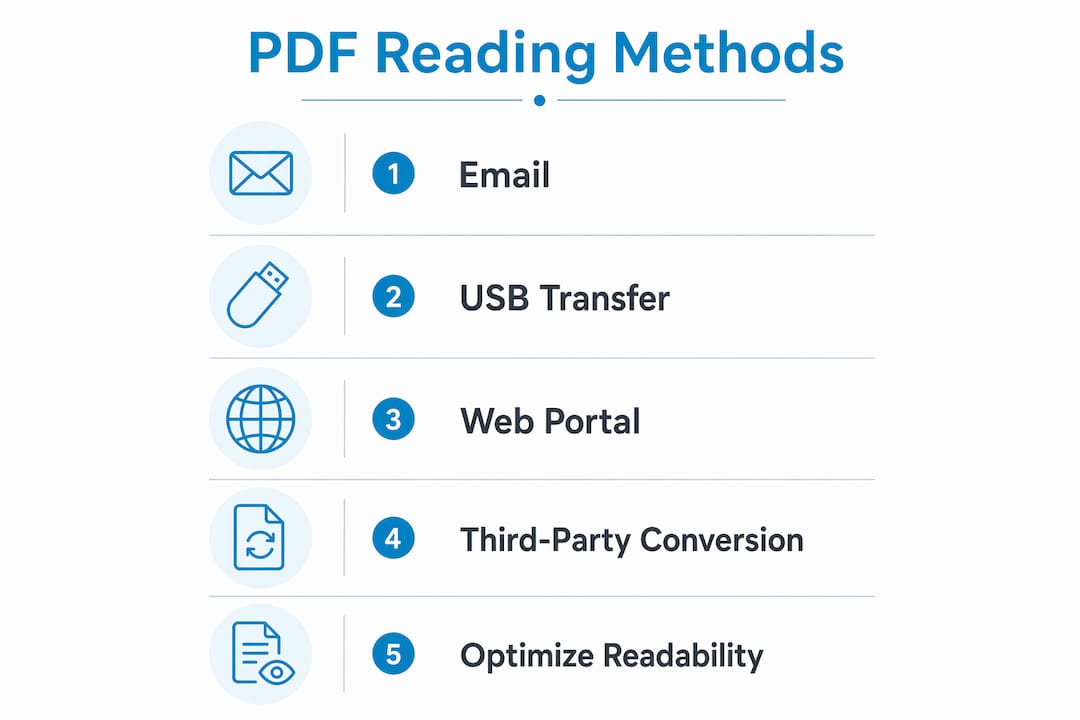
Kindle devices natively support PDF files, making it possible to read PDF on Kindle without any additional software. The standard industry term for this capability is “native PDF rendering,” and it works across all current Kindle models. Three primary transfer methods exist: email via the Send-to-Kindle address, the Amazon web portal, and USB cable. Each method suits different file sizes and document types, and choosing the wrong one for a complex PDF is the most common mistake readers make.
What are the main methods to read PDFs on Kindle?
Three primary methods transfer PDFs to Kindle: email to your Send-to-Kindle address, the Amazon web portal, and USB cable. Email and the web portal both work for files under 50 MB. USB cable handles files of any size, with no upper limit.
Each method has a clear best use case.
- Email (Send-to-Kindle address): Best for quick, wireless delivery of smaller PDFs. You can also trigger automatic text conversion by typing “Convert” in the email subject line.
- Amazon web portal: Works from any browser. Upload the PDF at amazon.com/sendtokindle and it arrives on your device within minutes.
- USB cable: Best for large files, private documents, or offline transfers. No internet connection required.
The 50 MB file size limit applies to both email and the web portal. A 200-page research report with embedded images will often exceed that threshold, making USB the only viable option.
Pro Tip: Check your PDF file size before choosing a method. Right-click the file on your computer and select “Properties” (Windows) or “Get Info” (Mac) to see the exact size.
One detail most readers miss: USB transfers require no Amazon account interaction. That makes USB the right choice for sensitive documents you prefer to keep off Amazon’s servers.

How to optimize PDF readability on Kindle
Native PDF format on Kindle preserves the original fixed layout. That means you will need to zoom and pan to read standard letter-sized pages on a 6-inch screen. The trade-off is layout accuracy versus reading comfort.
Amazon’s email conversion changes that. Adding “Convert” to the subject line triggers text reflow, which lets you adjust font size and read without zooming. This works well for single-column, text-heavy PDFs like novels or simple reports.
The conversion breaks down fast with complex documents. Amazon’s conversion engine uses linear text extraction, which interleaves lines from multi-column layouts and detaches footnotes from their citations. A two-column academic paper becomes nearly unreadable after automatic conversion.
Here is a quick guide to choosing the right approach:
- Single-column text PDFs (reports, articles, novels): Use email with “Convert” in the subject for the best reading comfort.
- Image-heavy PDFs (cookbooks, catalogs, infographics): Skip conversion. Transfer via USB to preserve the original layout.
- Multi-column academic papers or textbooks: Skip Amazon’s conversion entirely. Use third-party conversion to KFX format instead (covered below).
- Charts and technical diagrams: Always keep the original PDF layout. Conversion destroys spatial relationships in visual content.
Pro Tip: If a converted PDF looks garbled on your Kindle, delete it and re-send without “Convert” in the subject. The original layout will be preserved.
All modern Kindle models support native PDF reading. First-generation devices are the only exception. Navigation features like chapter jumping and search work better on newer models, but every current device opens PDFs without issue.
How to send a PDF to your Kindle via email
This method is the fastest wireless option for files under 50 MB. Follow these steps exactly.
- Find your Kindle email address. Go to amazon.com, open “Account & Lists,” then select “Manage Your Content and Devices.” Click the “Devices” tab and select your Kindle. The Send-to-Kindle email address appears there, formatted as something like yourname_abc123@kindle.com.
- Add your sender email to the approved list. Amazon blocks PDFs from unapproved senders as a security measure. On the same “Manage Your Content and Devices” page, go to “Preferences,” then “Personal Document Settings,” and add your email address under “Approved Personal Document E-mail List.”
- Compose your email. Attach the PDF file. Leave the subject line blank for native PDF format, or type “Convert” to trigger text reflow.
- Send and wait. Approved sender emails deliver PDFs to your Kindle shortly after sending, provided your device has a Wi-Fi connection. Delivery typically takes a few minutes.
- Troubleshoot delays. If the PDF does not appear, check that your sender address is on the approved list and that your Kindle is connected to Wi-Fi. Also verify the file is under 50 MB.
The Send-to-Kindle email feature is one of the least-known Kindle capabilities. Most readers who struggle with cable transfers have never tried it.
How to transfer PDFs to Kindle via USB
USB transfer is the most reliable method for large files and offline use. It requires no Amazon account interaction and places files directly on the device.
- Connect your Kindle to your computer using the USB cable that came with the device. The Kindle appears as a removable drive in File Explorer (Windows) or Finder (Mac).
- Open the Kindle drive and navigate to the “documents” folder. This is where all personal documents and PDFs belong.
- Copy your PDF file into the “documents” folder. Drag and drop or use copy-paste. No conversion happens automatically.
- Eject the Kindle safely. On Windows, use “Safely Remove Hardware.” On Mac, drag the Kindle icon to the Trash or click the eject button in Finder.
- Access your PDF. After ejection, the file appears immediately in your Kindle library under “Docs” without needing internet or conversion.
Pro Tip: Create subfolders inside the “documents” folder to organize PDFs by topic or project. Kindle displays these as collections, making large libraries much easier to browse.
USB transfer preserves the original PDF layout exactly. The trade-off is that you get no text reflow, so reading on a small screen requires zooming. For large-format documents like textbooks or technical manuals, this is still the better choice because layout accuracy matters more than font flexibility.
When and how to convert complex PDFs using third-party tools
Amazon’s built-in conversion handles simple PDFs well. It fails with academic papers, technical reports, and textbooks that use multi-column layouts, footnotes, or complex heading structures.
The solution is converting PDFs to Kindle’s native KFX format before transferring. KFX format supports correct column reading order, tappable footnotes, and navigable headings. It activates Kindle’s full layout engine rather than forcing the device to render a fixed PDF image.
Services like leafbind.io convert PDFs to KFX format. After conversion, you transfer the KFX file via USB to the “documents” folder using the same steps described above.
Here is when third-party KFX conversion is worth the extra step:
- Academic papers with two or more columns: Amazon’s linear extraction scrambles the reading order. KFX preserves it.
- Textbooks with footnotes: KFX makes footnotes tappable, so you can jump to a note and return without losing your place.
- Research reports with navigable headings: KFX creates a working table of contents from heading structure.
- Large PDFs on Kindle Scribe: The Scribe’s larger screen handles KFX annotation features that standard PDF rendering does not support.
The extra conversion step takes a few minutes. For a 300-page academic text you plan to read and annotate thoroughly, that investment pays off immediately.
Key takeaways
Choosing the right transfer method based on document type and file size is the single most important decision when reading PDFs on Kindle.
| Point | Details |
|---|---|
| Three transfer methods exist | Email, web portal, and USB each suit different file sizes and document types. |
| 50 MB limit applies to email and web portal | Files over 50 MB require USB cable transfer with no size restriction. |
| “Convert” in subject triggers text reflow | Use this only for single-column, text-heavy PDFs to avoid layout corruption. |
| Complex PDFs need KFX conversion | Third-party KFX conversion preserves columns, footnotes, and headings that Amazon’s engine destroys. |
| USB transfer is private and offline | No Amazon account interaction occurs, making USB right for sensitive documents. |
What I’ve learned from reading hundreds of PDFs on Kindle
The biggest mistake I see is readers defaulting to email conversion for every PDF. It feels like the easiest path, and for a simple article or report it works perfectly. But send a two-column research paper through Amazon’s conversion and you get a garbled mess that takes longer to decode than the original content.
My rule is simple: if the PDF has any visual structure beyond basic paragraphs, skip conversion. Transfer it via USB and read it in native format. Yes, you will zoom occasionally. That is a smaller problem than misread columns or detached footnotes.
The KFX conversion route changed how I handle academic reading on Kindle. I started using it for journal articles and textbooks, and the difference in navigation alone justifies the extra step. Tappable footnotes sound like a minor feature until you are working through a heavily cited paper and need to check sources constantly.
One more thing worth knowing: device choice matters more than most guides admit. A Kindle Scribe or Paperwhite with a larger screen makes native PDF reading genuinely comfortable. On a basic 6-inch Kindle, even well-formatted PDFs require frequent zooming. If you read a lot of PDFs, the screen size upgrade is the highest-return investment you can make.
For readers who want to skip PDF friction entirely, Ebook-warehouse offers titles in formats that work natively on Kindle without any conversion. That is worth considering when you have a choice about the format you acquire.
— Stephen
Ebook-warehouse and your digital reading library
Reading PDFs on Kindle gets easier once you know the right method for each document type. The next step is building a library that works across all your devices without format headaches.
Ebook-warehouse offers a curated selection of downloadable e-books in formats designed for direct Kindle compatibility. Whether you are building a personal development reading list, exploring business titles, or diving into niche subjects, the collection gives you instant access without the conversion step. Every title is available for multi-device reading, so your library travels with you. Visit Ebook-warehouse to browse titles ready to read on any Kindle model today.
FAQ
Can Kindle read PDF files natively?
Yes. All current Kindle models support native PDF reading without any conversion. First-generation devices are the only exception.
How do I find my Kindle’s Send-to-Kindle email address?
Go to amazon.com, open “Manage Your Content and Devices,” click the “Devices” tab, and select your Kindle. The unique email address is listed there.
What does “Convert” in the email subject do?
Typing “Convert” in the subject line triggers Amazon’s text reflow conversion, enabling adjustable font sizes. Use it only for single-column, text-heavy PDFs since it corrupts multi-column layouts.
What is the file size limit for sending PDFs to Kindle by email?
The limit is 50 MB for both email and the web portal. Files larger than 50 MB require USB cable transfer, which has no size restriction.
When should I convert a PDF to KFX format?
Convert to KFX when your PDF has multi-column layouts, footnotes, or navigable headings. KFX preserves reading order and makes footnotes tappable, which Amazon’s automatic conversion cannot do.