

Find Any Book in Under 30 Seconds: Organize Your Ebook Library
Pick one master copy, create a single Inbox folder for new arrivals, and enforce one filename and metadata rule across everything. That’s the whole system. Do it with a metadata-first tool like Calibre or a self-hosted server, follow Harvard’s file-naming logic for series order, and you can find any book in your collection in under 30 seconds.
TL;DR:
- Using a single master copy on local, cloud, or self-hosted storage is essential to avoid version confusion and maintain control.
- Processing new ebook files weekly by checking duplicates, applying filename rules, and adding key metadata streamlines organization and reduces clutter.
- Consistent filename patterns with zero-padded series numbers improve sorting order, especially on older devices or file systems lacking search.
- Fixing high-value metadata fields like author names and series info offers the most noticeable library improvement over comprehensive but messy data.
- Regularly maintaining and deduplicating the library prevents clutter buildup and ensures search and filtering tools function reliably.
Table of Contents
- Choosing a master copy, synced subset, and device copies
- What’s the best intake workflow for new ebook files?
- What filename and folder structure actually works?
- Which metadata fields should you fix first?
- Which tool fits your setup: local, cloud, or self-hosted?
- How do you deduplicate and normalize file formats?
- How often should you maintain your ebook library?
- A 30 to 90 minute quick-start session
- How do you move ebooks between platforms and devices?
- How do you handle DRM-protected ebooks in your library?
- How do search and filtering actually work in these tools?
- Author perspective: what actually keeps a library useful
- An easier starting point than fixing every file yourself
- Sources
Choosing a master copy, synced subset, and device copies
Every working ebook library needs three layers. The master copy is the complete, authoritative collection, either on a local drive, in a cloud folder, or on a self-hosted server. The synced subset is what actually lives on your phone or tablet, usually just what you’re currently reading or plan to read soon. Device-only copies are temporary files, like a library loan or a review PDF you’ll delete in a week.
A local master gives you full control and no subscription risk, but you handle backups yourself. A cloud master (Dropbox, Google Drive) syncs automatically but ties you to a provider’s storage limits. A self-hosted server splits the difference: your files, your rules, browser access from anywhere.
- Local master: total control, manual backup responsibility
- Cloud master: automatic sync, ongoing subscription cost
- Self-hosted master: private and flexible, but you handle setup
Whichever you pick, treat it as the single source of truth. Everything else gets deleted and re-synced without a second thought, since the University of Illinois Library’s ebook guide points out that a single master copy is the foundation nearly every durable system relies on.
What’s the best intake workflow for new ebook files?
New books land in a dedicated Inbox or To-process folder, never straight into your organized library. Every download, purchase, or converted file goes there first, and you process the folder on a weekly schedule rather than letting it pile up for months.
- Check for duplicates against your existing library.
- Apply your filename rule immediately, before the file gets buried.
- Add the minimum required metadata: author, title, series index.
- Move the file into Unread, Reading, or Archive based on status.
Some tools can automate the first step. Calibre and several self-hosted servers support watched folders that pull new files in automatically, and BookLore’s BookDrop feature does something similar by watching a designated drop location and prompting you to confirm metadata before it files the book away.
Pro Tip: Set a recurring 15 minute calendar reminder for your Inbox processing session. A folder that never gets emptied becomes the exact clutter you were trying to avoid.
What filename and folder structure actually works?
Use a consistent pattern like Author Last, First - Series (02) - Title - Format. The two-digit series number matters more than it looks. Without it, “Book 9” sorts before “Book 10” alphabetically on nearly every file system and reader app, scrambling reading order. Harvard’s data management guidance on file naming conventions recommends exactly this kind of zero-padded numbering for anything with a sequence.
A simple top-level folder layout keeps things scannable even before you open a dedicated app:
- Library → Unread (new acquisitions you haven’t started)
- Library → Reading (active, current)
- Library → Finished (completed, kept for reference)
- Library → Archive (rarely accessed but retained)
Here’s the thing most people miss: consistent naming often beats perfect metadata for everyday browsing. If you’re digging through folders on a phone or an older e-reader with no real search function, a well-named file finds itself. Metadata only helps once you’re inside an app that reads it.
Which metadata fields should you fix first?
Not all metadata carries equal weight. NISO’s e-book metadata guidance makes a point worth repeating: consistency in a few high-value fields beats exhaustive but messy metadata across dozens of fields nobody uses.
- Canonicalize authors first. Fix “J.K. Rowling,” “Rowling, J.K.,” and “Joanne Rowling” into one consistent author-sort entry, “Rowling, J.K.” Author fragmentation is often the single biggest source of a library that looks disorganized even when the files are fine.
- Set series name and series index. Use half-numbers, like 2.5, for novellas or interstitial stories so you never have to renumber an entire series when a new short story gets inserted later.
- Use tags sparingly. Reserve tags for attributes that cut across categories, like “audiobook-companion” or “borrowed,” rather than trying to tag every genre and mood.
- Build collections for curated sets, such as a themed reading list or a book club selection, instead of layering on more tags.
Fixing author names alone often consolidates dozens of fragmented entries into a handful of clean ones, which is usually the fastest visible improvement you’ll make to the whole library.
Which tool fits your setup: local, cloud, or self-hosted?
Calibre remains the default starting point for a reason. It handles batch metadata edits, format conversion, and identifier lookups (ISBN, ASIN) better than almost anything else, and it’s free. If you want deep, granular control over a large local collection, start there.
If you read across multiple devices and want browser access without juggling cloud subscriptions, a self-hosted web server is the better fit. Calibre-Web, HomeBranch, BookLore, and Colophon all let you host your library on your own hardware while getting browser-based reading and progress sync. BookLore adds automatic metadata fetching and OPDS support; Colophon goes further with AI-assisted metadata suggestions and direct Kobo wireless sync, writing corrected metadata back into the files themselves.
For something faster and lighter than a full server, Citadel reads your existing Calibre library directly from the desktop, no server install required, and adds smart shelves for quick browsing through thousands of titles.
- Want deep local control? Use Calibre.
- Want multi-device browser access? Run Calibre-Web, HomeBranch, or BookLore.
- Want fast desktop browsing without server setup? Use Citadel.
Pro Tip: You don’t have to pick just one. Plenty of people run Calibre as the editing workhorse and Citadel or a self-hosted server as the day-to-day browsing front end.
How do you deduplicate and normalize file formats?
Start with identifiers, not filenames. Two files with different titles but the same ISBN or ASIN are duplicates, even if one is called “final_v2.epub.” Filenames lie; identifiers don’t.
- Match and remove duplicates using ISBN/ASIN first, filename comparison second.
- Prefer an open EPUB master when a book exists in both EPUB and a proprietary format.
- Batch-convert with Calibre when you need format consistency across a device.
- Keep original PDFs when layout fidelity matters, like textbooks or illustrated cookbooks.
- Label intentional exceptions in a custom metadata field instead of keeping unlabeled duplicate copies “just in case.”
A quick primer on ebook file formats helps if you’re unsure when a PDF should stay a PDF versus getting converted.
How often should you maintain your ebook library?
A library only stays organized if maintenance is small and frequent, not a once-a-year overhaul.
- Weekly: Empty the Inbox, fix any obviously wrong filenames, move finished books from Reading to Finished.
- Monthly: Run a small deduplication pass and confirm your sync between devices is actually current.
- Quarterly: Do a full dedupe sweep and check format consistency across the whole library.
- Yearly: Simplify folder structure if it’s grown messy, and prune the Archive of anything you’ll genuinely never reopen.
Pro Tip: The weekly task is the one that actually matters. Skip it twice and you’re back to a chaotic download folder.
A 30 to 90 minute quick-start session
You don’t need a weekend to see results.
- Pick your master location and create the Inbox folder.
- Set your filename rule and apply it to 10 to 20 priority books first.
- Run a small dedupe pass, then import everything into Calibre or your chosen server.
- Confirm a synced device shows the books you expect to see.
Success looks like this: try to find three specific books you couldn’t easily locate last week. If you find all three in under 30 seconds, the system is working.
How do you move ebooks between platforms and devices?
Moving books between apps and devices usually breaks down at one of two points: format incompatibility or metadata loss. Kindle devices favor AZW3 or their proprietary formats, most other readers use EPUB, and PDFs sit awkwardly in between since they preserve layout but resist reflowing text on small screens.
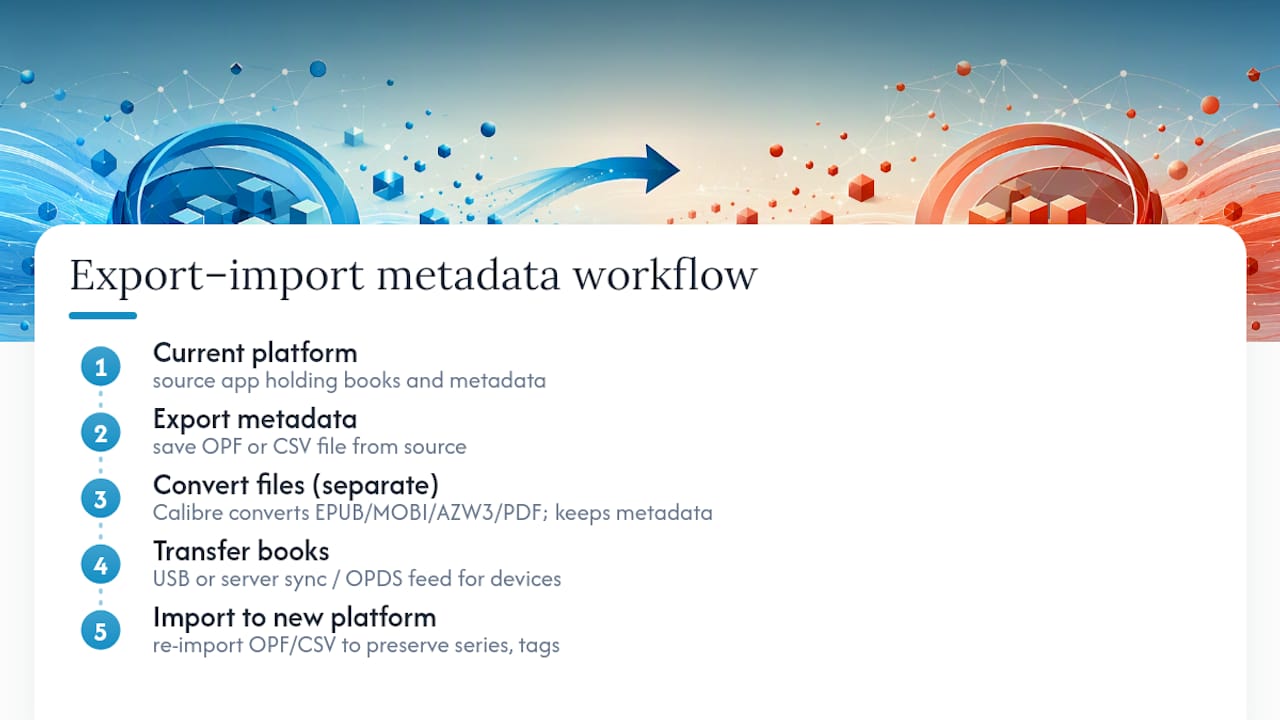
Calibre solves most of this. Its conversion engine handles EPUB, MOBI, AZW3, and PDF conversions in batches, and critically, it carries metadata through the conversion instead of dropping it. That matters more than people expect. A book converted with a generic online tool often loses its series index and author-sort data, forcing you to redo metadata work you already finished once.
For exporting to a new device, connect it directly to Calibre (USB works for most e-readers) or use your self-hosted server’s sync protocol if you’re running Calibre-Web, BookLore, or Colophon, since Colophon’s Kobo wireless sync sends books directly without a cable. OPDS support, which several self-hosted servers include, gives you a standard feed that most reading apps can subscribe to, so a new device or app can pull your library without a manual export and re-import step every time.
Switching platforms entirely, say moving from one reading app to another, is really an export-then-import problem. Export your library’s metadata as an OPF or CSV file if your current tool supports it, then re-import into the new platform rather than dragging files over one by one. You’ll keep your series numbering and tags intact instead of starting from zero. A quick look at reader app options is worth it before committing, since some apps read metadata far more faithfully than others.
How do you handle DRM-protected ebooks in your library?
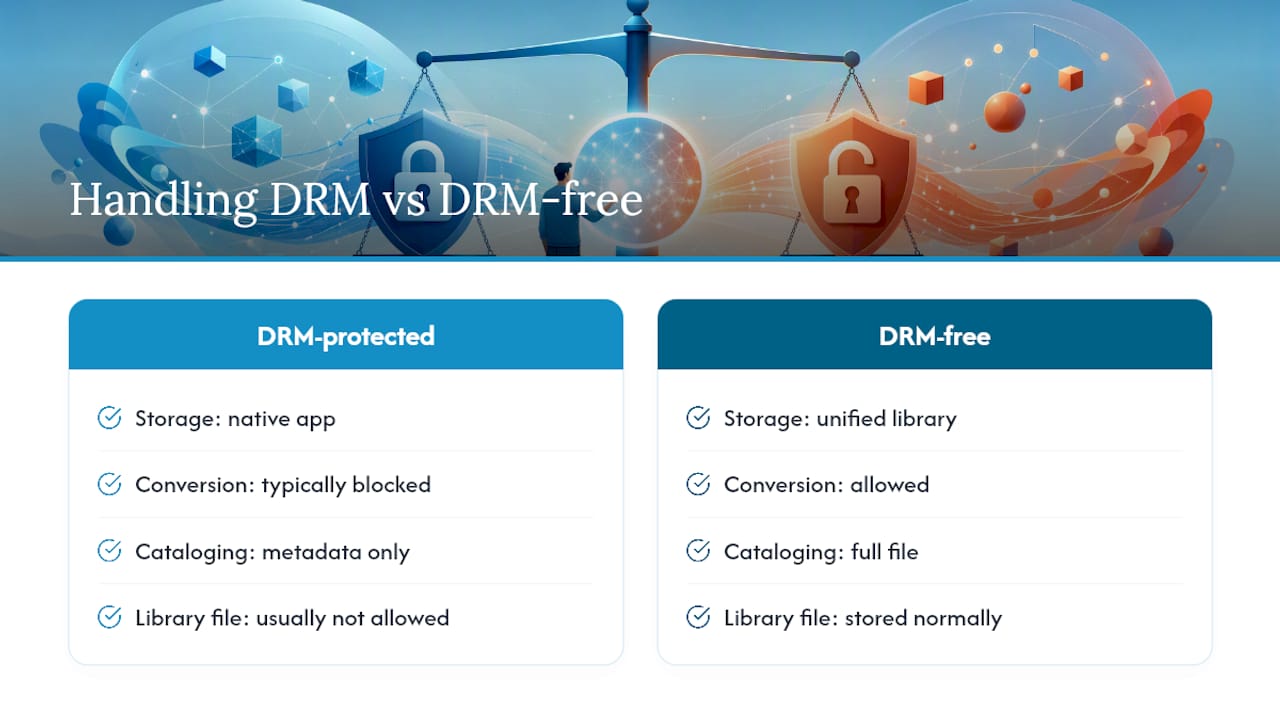
DRM-protected files complicate every part of this system, from conversion to backup to simple browsing. A book with digital rights management locks the file to a specific app or account, which means Calibre can catalog it and track its metadata, but it generally can’t convert or repackage the file itself without the DRM being removed first, and that removal sits in a legal gray area that varies by jurisdiction and by the specific license terms you agreed to when you bought the book.
The practical approach: keep DRM-protected purchases in their native reading apps (Kindle app, Kobo app, Adobe Digital Editions) and don’t try to force them into your unified library structure. Catalog them anyway, even without the actual file. Add a placeholder entry in Calibre or your server with full metadata (title, author, series index) and a note field indicating which platform holds the actual file. That way your library’s search and browsing still surfaces every book you own, even the ones locked to a specific app.
This is also where buying from sources that sell DRM-free files pays off long term. A store that hands you a clean PDF or EPUB with no rights restrictions means the file goes straight into your intake workflow like anything else. No placeholder, no app-hopping, no wondering which account a book is tied to five years from now. It’s one of the quieter reasons DRM-free purchases save time, not just principle.
How do search and filtering actually work in these tools?
Search inside a well-metadata’d library is dramatically more useful than search inside a folder of files, because it queries structured fields instead of just filenames. Calibre’s search bar supports operators most people never touch: author:rowling, series:%22Harry Potter%22, or tag:favorites narrows results instantly, and you can combine them with and or or for compound filters.
Self-hosted servers like BookLore and Colophon extend this into “smart shelves,” saved filtered views that update automatically. A smart shelf built on tag:unread and rating:>=4 shows your best-rated unread books without you rebuilding the filter every time. Citadel offers something similar for Calibre libraries browsed on the desktop, letting you jump straight to a filtered subset without opening the full catalog.
Filtering only works as well as your metadata lets it. This is the direct payoff of the cleanup work from earlier: fix your author names and series indexes, and every one of these search operators becomes reliable. Skip that cleanup, and you’ll search for “rowling” and miss four books filed under “J.K. Rowling” with a stray space or period the system treats as a different author entirely.
Author perspective: what actually keeps a library useful
Start small. Fix authors before anything else, since that single field fixes the most visible mess. Resist the urge to tag everything. Set up a watched folder or BookDrop so intake stops feeling like a chore. And back up the master copy religiously. The whole system collapses the moment you lose the one file it all depends on.
— Stephen
An easier starting point than fixing every file yourself
If your Inbox folder is already a mess of inconsistent filenames and missing metadata, you don’t have to fix every file by hand before this system works. Ebook-warehouse sells curated PDFs with consistent filenames and embedded metadata built in, so they slide straight into your Unread folder without a single rename or manual tag.
That’s the real advantage over hunting down free files scattered across the web: no guessing at author formatting, no re-typing series numbers, no stripped metadata to rebuild from scratch. Titles like Developing Emotional Intelligence and the Business Growth Bundle arrive ready for your intake workflow on day one. This is entirely optional. You can organize a library built from files you already own using everything above, no purchase required. But if you’re starting a new collection or filling gaps in an existing one, a clean, well-packaged file saves you the cleanup work later. Browse the current personal development titles and see how a properly tagged file drops straight into your system.
Sources
- File naming conventions (Harvard Data Management)
- How to self-host an ebook server (itsfoss)
- NISO e-book metadata recommended practice
- Finding and Using E-Books: Organize E-Books (University of Illinois Library)